External references, or Xrefs, simplify the process of creating CAD drawings. They minimize clutter and file size, in addition to boosting software performance, by limiting the information loaded at startup. While they provide several benefits (discussed in greater detail later on), they may not always function as envisioned. These functional problems are often caused by broken CAD references. So, in this article, we discuss the causes of the broken Xrefs as well as how to identify, repair, and prevent them.
Table of Contents
Understanding CAD References and Why They Break
What Are External References (Xrefs) in CAD?
Xrefs, or external references, are drawings, images, or documents linked to a current drawing but stored as separate files. The Xrefs feature, therefore, displays the content from the external, separate files and updates the current drawing in real-time whenever the referenced files are updated.
CAD software, including AutoCAD, DraftSight, SolidWorks, Revit, Creo, BricsCAD, nanoCAD, and ArchiCAD, as well as product lifecycle management (PLM) and product data management (PDM) tools such as Windchill and SolidWorks PDM, all support external references. But the implementation of external references in some software, e.g., Creo, is different.
In Creo, an external reference is also known as an external dependency. In this particular software, the external reference is an association or relationship between a part or subassembly (object) and some information from a different part or subassembly that is not always available to the referencing object. However, Creo does not always create external references; it only does so within the context of an assembly and in instances where the referenced information is external to the model you are working with.
Benefits of External References in CAD
Xrefs offer a number of advantages, including:
- Xrefs enable you to organize your drawings more easily, thus helping you deal with duplication and CAD file version control errors.
- The CAD references reduce the file sizes by keeping to a minimum the number of drawings or components in a file
- They allow you to update the drawings without much difficulty. This is evident when you have attached the same reference in multiple drawings. The Xref ensures that you update only the CAD file containing the referenced drawing, rather than updating each of the drawings that refer to the external drawing individually. As a result, Xrefs result in a fourth benefit.
- Xrefs save considerable time by allowing you to update shared references without editing each individual drawing.
- Xrefs promote multidisciplinary collaboration. Typically, the model of a building will incorporate drawings and designs from electrical, structural, architectural, HVAC, and plumbing teams. The common practice entails having a shared base file that is referenced in the drawings created by each team. Under this arrangement, each team maintains its own files that it can easily update, and whose updates are immediately reflected in the shared file. Put simply, Xrefs enable teams to collaborate on large-scale CAD projects.
Causes of Broken CAD References
There are several causes of broken CAD references:
- An Xref located inside another Xref (i.e., it is nested), yet the location of the parent file that houses the nested Xref has been modified
- A nested Xref or a sequence of multiple nested references that refers to itself, creating what is known as a circular reference. AutoCAD displays an error message whenever it encounters a circular reference and then breaks it at the point where it detects the circularity. For instance, if drawing X attaches to Y, which attaches to Z, which in turn attaches to X, thus creating the X>Y>Z>X reference sequence, AutoCAD will break the circularity between drawing Z and X, resulting in a broken CAD reference.
- The Xref file is corrupted
- The reference file has been renamed
- The drive where the Xref is located has changed, or the drive’s letter has been altered
- Lack of access privileges to the folder, drive, or server where the Xref is stored
- The Xref file was relocated, deleted, or not provided
- The Xref’s path has only been partially specified (i.e., it has a relative path) instead of being fully specified (i.e., having a full or absolute path), while simultaneously existing as a template
- The reference path exceeds 256 characters
- Inconsistent units and systems of measurement, which affect the scale
- The Xref is on a locked layer
Identifying and Locating Broken References
The cause of a broken CAD reference isn’t always obvious and often requires some troubleshooting. First, you can check the file location to determine whether the issue pertains to the length of the file path or the correctness of the location or names. You can, for instance, pay attention to the drive’s letter.
Repairing Broken CAD References
There are a few solutions to broken CAD references. You can try one or several of them, depending on whether you have identified the real cause.
Update CAD Software or Operating System
The first step is to update the CAD software. This is because the broken CAD references may have arisen from incompatibility in the versions of software you were initially using. You can also update the operating system to eliminate the possibility that system-related issues are the source of the problem. If the issue persists even after updating the software or system, consider the options below.
Rename Folders or Files
Overly long Xref paths are a common cause of broken CAD references. This naturally means that repairing such an issue is as simple as renaming folders and files with long names. Alternatively, you can move the referenced file to a different path. The goal, regardless of the option you choose, is to ensure that the path has a length of less than 256 characters.
Use Built-in Repair Tools to Break Circular References
AutoCAD repairs circular references by automatically breaking the loop as soon as it’s detected. It is designed to display a warning message letting you choose if you want it to proceed with the termination.
Change Reference Path
You need to ensure that the referenced file is stored in the location listed in the saved path. If it isn’t, you can move the file to that location. Alternatively, you can replace the saved path with a new path.
But you do not have to take such reactive measures after the fact. You can borrow a leaf from the concept of predictive maintenance, which anticipates potential adverse outcomes and prevents them well in advance. Specifically, you can make it a habit to update the reference path every time you move the external reference files to a different location.
On its part, Autodesk has created the Reference Manager, a standalone application that makes this process quite a breeze. The Reference Manager lists all the external reference files in AutoCAD drawings and offers the means to modify the paths without opening the drawing files.

Reference Manager for AutoCAD (source)
Clean the Drawing File
One of the causes of broken CAD references is corruption. It incidentally can also cause slow CAD software performance. Ordinarily, a corrupted file does not open and if it does, it displays one or more error messages. Corrupted CAD files can show various symptoms, as detailed in Autodesk’s support documentation.
The solutions, at least on AutoCAD, can be wide-ranging, from using the RECOVER, PURGE, or AUDIT commands to deleting or removing duplicate temporary hidden files (DWL and DWL2 files) and inserting the affected drawing in a new file. AutoCAD creates duplicate files in the same folder as your DWG file whenever you are working on the original DWG file.
Update Broken Reference
SolidWorks PDM lets you update broken file references. The PDM tool supports three main commands for updating the references:
- Find Files: This command updates the broken reference with a file that bears the same name as the broken reference but is saved in a different location within the vault. Simply put, this command redirects broken references.
- Replace File: This command replaces the broken reference with a file that bears a different name and is saved either in or outside the vault.
- Add File to Vault: This command is intended for use when the referenced file is stored outside the vault. It allows you to indicate where to add the referenced file within the vault.
Other Approaches to Repairing Broken CAD References
If the recommendations above prove futile, you can also consider the following approaches:
- Recreate the referenced drawing
- Detach nested Xrefs in the host drawing
- Ensure the Xref is on an unlocked layer
- Resolve storage and network-related issues by using a dedicated file server, updating network drivers, upgrading your server, verifying that your network’s settings are correct, and more
Best Practices to Prevent Broken References
Broken CAD references can interrupt design work and force time-consuming troubleshooting. For this reason, there is a need to implement some proven best practices to prevent broken references. These include:
- Keep the shared base file (i.e., the file that is referenced) as light and clean as possible by removing any unnecessary elements or layers. This ensures that the base file loads quickly and is not filled with clutter. It also frees it from corruption.
- Use reference management tools to help you manage the Xrefs and potentially identify issues that may cause broken CAD references.
- Ensure the drawings and their folders have short names
- Use relative paths, which do not limit you to a specific drive or folder. A relative path assumes information such as the drive letter and folder, creating flexibility that lets you save or relocate your drawings from one drive to another, provided they use the same folder structure. Relative paths are particularly important when dealing with cloud services.
- Consider using the Bind option to make the Xref a permanent part of your drawing. It deletes the Xref to the file. In practice, CAD software adds a prefix to the Xrefs’ layer names, helping you distinguish between the original layers and the Xrefs’ layers.
- Keep track of file relocations. It is advisable to track changes to your storage, as this will enable you to update paths immediately when the referenced files are moved.
Managing References in Collaborative Environments
A typical CAD project brings together professionals drawn from different teams, companies, regions, and countries, all of whom need to work collaboratively. The need for collaboration has spawned tools and technologies like cloud-based CAD products, cloud storage, digital twin platforms, PLM and PDM tools, and common data environments. Some of these tools support external references.
PDM and PLM Tools
PLM and PDM solutions are designed to enable secure and real-time data sharing. This data can encompass a range of information, including historical and current product data, as well as design data, with the latter incidentally including external references.
Tools like Windchill and SolidWorks PDM support external references. Windchill, for instance, creates and manages external references. SolidWorks PDM, on the other hand, lets you add references to files stored in its vault. These tools enable you to manage references in a collaborative environment.
Cloud Services
You can store referenced files in the cloud. However, to avoid instances of broken CAD references, it is crucial to set the path to relative. As stated earlier, a relative path provides flexibility by assuming certain information.
Tools and Utilities for Reference Management
There are three categories of tools for reference management in CAD:
- Built-in tools that are part of the CAD software
- Standalone applications
- Plugins
Built-In Reference Management Tools
1. DraftSight’s Xref Manager
The Xref Manager is a tool in DraftSight that allows you to view and manage all current references. It gives you the option to change, detach, or reload their paths. It also enables you to view their status and load only the referenced files, thus enabling DraftSight to open large drawings quickly.
2. AutoCAD External References Palette
AutoCAD’s External Reference palette lets you manage and organize referenced files. It achieves this by displaying all the referenced files. In addition, it features shortcut menus that allow you to attach Xrefs, reload all references, change the path of selected referenced files, display information related to the selected reference, preview image, and more.

AutoCAD External References Palette (source)
3. Creo’s External Reference Control
The External Reference Control tool on Creo is a dialog box that allows you to specify the external reference control settings in the current, active model. You can also specify the settings in the Creo Parametric Options dialog box. Other tools include the Reference Viewer and Reference Control, which let you manage external references.
4. ArchiCAD’s Xref Manager
The Xref Manager lets you manage all the Xrefs attached to an ArchiCAD project. It is a dialog box that displays information about the referenced files. This information includes the size, name, status (bound, loaded, unloaded, reloaded, or detached), and name. This tool also lets you attach, detach, reload, unload, or bind referenced files. To access this dialog box, click File > External Content > Xref Manager.
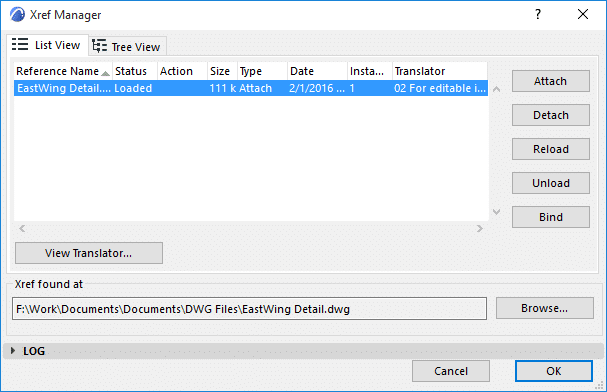
Xref Manager in ArchiCAD (source)
Standalone Reference Management Tools
This category of tools exists as separate entities. These are standalone applications that have their own user interface and are launched independently. Autodesk’s Reference Manager is an example of such a tool.
The Reference Manager is a standalone application for AutoCAD that lets you manage referenced files without launching AutoCAD or opening the respective referenced drawings. Specifically, it lets you identify missing files, update paths, find and replace paths, and create a report about all the Xrefs.
Plugins
Also known as an add-on, a plugin is software that is installed on an existing software, in this case CAD software, to extend its functionality and capabilities. RefMan, for instance, is an AutoCAD plugin that enables you to manage external references. Developed by Camilion, RefMan lets you update, delete, merge, or modify referenced files. You can access RefMan in AutoCAD by typing REFMAN into the command line.
Conclusion
With broken CAD references holding the potential to derail your design work, it is essential to understand the causes as well as how to identify the source of the breakage and fix the issues. Broken CAD Xrefs can arise from corruption, incorrect or outdated paths, circular references, nested Xrefs, and other issues. Knowledge of the potential causes comes in handy as it enables you to more easily troubleshoot and resolve the issue. That said, you can take a precautionary stance by implementing best practices that prevent broken CAD references. You can also utilize reference management tools that simplify the process of tracking changes and managing multiple references.